


Modern merchants have built solid online stores. Yet many of them are taking a strategic step and moving to Shopify Plus and platforms alike. The reason for this is simple – even the most well-built custom e-commerce infrastructure can’t compete with the advantages of the Shopify ecosystem. Shopify powers over 6 million live e‑commerce stores worldwide, and this figure continues to grow year over year. Shopify merchants collectively sell to hundreds of millions of customers each year, and thousands of extensions easily connect to everything from marketing tools to global logistics.
Migrating your store to Shopify isn’t as simple as picking a new design and hitting “go.” If your store has tens of thousands of products and SKUs, each with multiple details and years of SEO work, you face a huge data challenge. Even a single mistake can cause big problems: products might get mixed up, stock could be wrong, your store could disappear from search results, or customers could click on broken links. It’s not a mess, but lost sales.
Most agencies won’t say it, but a successful replatforming to Shopify has nothing to do with design. It’s all about data integrity. In this guide, we’ll show how to migrate complex catalogs to Shopify without losing a single piece of critical information, because your data is the core of your business.
The Pre-Migration Phase: Data Audit & Cleansing
If you think migrating to Shopify is a simple “copy-paste” job, you are about to make the biggest and costliest mistake. Technically, you can move tens of thousands of products straight from a system like Magento or BigCommerce into Shopify Plus, but it will not work. You will only accelerate your existing data problems. Messy data can disrupt operations, frustrate customers, and slow growth. The pre-migration phase is time-consuming, but it gives you a chance to turn raw, scattered data into a clean, organized system that actually supports your business.
Carry Out a Deep Audit
This is where you should start – a thorough check of your existing catalog. Over the years, data systems accumulate enough inconsistencies. Experts call it attribute drift. These small differences look harmless, but they confuse filters and make the backend messy. You should carefully review all your product data. Analytics tools will let you check for missing values, duplicates, and inconsistencies. Product data cleansing is a process with clear steps:
- Standardization. Shopify search and filters work well with consistent data. Every option – colors, sizes, materials, brands – should follow one clear standard. For example, Blu, Navy, and Blue should all become Blue. S, SM, and Small should become Small. The same goes for things like measurements, dates, and capitalization. Clean data makes it easier for customers to find the right product.
- De-duplication. Most catalogs collect clutter over time. Old products that are no longer sold, duplicate items from past imports, or variants with no stock can still be in the system. Shopify data migration is the best time to remove this and make your catalog match your real inventory.
- E-commerce Data Entry. Shopify has specific data requirements. Missing product weights, for example, will break your shipping calculations. So, make clear and SEO-friendly titles, review descriptions for tone and check other product details.
The Critical Mapping Phase
Once your data is clean, the next step is to tell Shopify where everything should go. This is called mapping, and it’s not always simple. Different platforms organize product data in different ways. For example, a field called Long Description on your old platform may need to go into Shopify’s Body_HTML field, and a Short Description needs to be stored as a metafield instead.
Understanding Shopify’s Architecture
For years, Shopify limited each product to 100 variants, which was problematic for brands with complex catalogs. At the end of 2025, that limit has increased to 2,048 variants per product. Now, merchants can keep large product families under a single listing. However, there are still a few things to keep in mind:
- Products can have up to three option types (for example, size, color, material).
- Some older themes or apps don’t fully support products with very high variant counts.
These extreme cases are rare, but they do exist. And here are two solutions to overcome these Shopify API limitations:
- You can split products into multiple listings (for example, separating materials or styles).
- You can use apps to add custom options outside Shopify’s native variant system, but this must be managed carefully.
Metafields Still Matter
Even with improved variant support, Shopify’s standard product fields are still limited. When you need to store extra details, for example, fabric material, washing instructions, country of origin, or technical specs, you will need metafields.
You can attach custom data to products, variants, and collections without cluttering the core fields, and metafields can be displayed on the storefront with the right setup. During Shopify catalog migration, it’s critical to map all custom attributes into metafields so nothing important gets lost.
Migration Methods: CSV vs. Apps vs. API
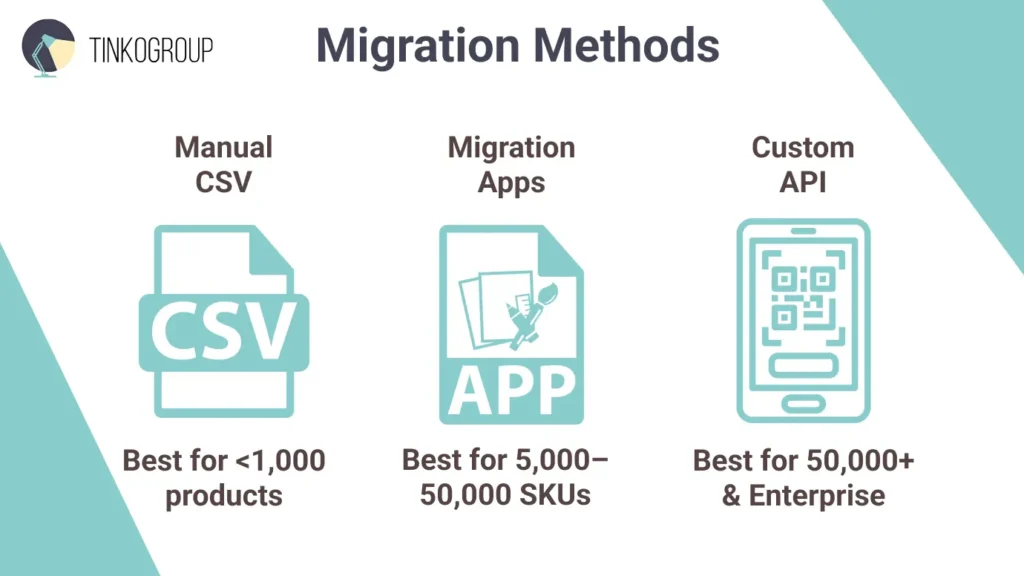
There are three main ways to migrate products to Shopify. Each method works best for a different store size, and choosing the wrong one can slow things down or cause mistakes.
Manual CSV Import – Simple but Limited
Shopify offers a built-in CSV import tool. If you have a small store with less than 1,000 products, it can be a good option for Shopify catalog migration. It lets you upload products, variants, customers, inventory levels, and more directly through the admin panel. This method is straightforward, doesn’t require extra costs, and works best for one-time imports or small updates.
However, this method is limited for larger or more complex stores. Big files (roughly 15-20 MB) often fail to upload, errors are hard to fix, and advanced data like custom fields, images, or complex variants aren’t handled well. Plus, importing advanced data like metafields requires extra steps and manual work. If your catalog includes lots of custom data or large image libraries, CSV imports can be frustrating and may leave parts of your data behind.
Migration Apps – The Middle Ground
Migration apps like Matrixify (formerly Excelify) offer a more reliable option. It supports large files up to 20 GB and works with Excel, CSV, and Google Sheets. Key benefits include:
- Full support for products, variants, metafields, images (via URLs), collections, customers, orders, redirects, and more.
- Built-in error previews, partial imports, and the ability to resume jobs.
- Pre-made templates for the most popular platforms.
- Scheduling, previewing changes, and bulk post-import updates.
Other reliable options include Cart2Cart (great for automated, no-code migrations) and EZ Importer (solid for simpler bulk imports). These apps minimize manual work, reduce errors, and let non-developers manage complex data flows safely.
Migration apps are often the best balance for mid-sized tasks (5,000 to 50,000 SKU management). Apps reduce the chance of failed imports and don’t require custom development. The trade-offs are cost (most are paid tools) and some limitations based on what the app supports.
Custom API Scripting – The Enterprise Solution
Shopify’s API is the safest option when you’re moving a very large catalog, for example, 50,000 products or more, or working with complex systems like an ERP. It needs technical setup, but it gives you full control over the Shopify catalog migration.
Instead of uploading everything at once, data is moved in small batches, and you avoid errors and timeouts. Bulk product upload Shopify can also process large imports in the background, so your work doesn’t get stuck. Images are uploaded separately and linked later, which makes the process more reliable.
Most teams migrate in steps, such as by category or product type, to test along the way and fix issues early. Custom scripts can automatically retry failed items and keep detailed logs. API migration takes more effort to set up, but it’s the best solution for big or complex stores.

Reliable Data Services Delivered By Experts
We help you scale faster by doing the data work right - the first time

Preserving SEO During Migration
Search traffic brings in a large part of sales for most online stores. If your rankings drop during a Shopify catalog migration, sales can drop too. That’s why SEO protection should be planned early, not after launch. The main goal is simple – when someone clicks a link from Google or an old bookmark, they should land on the right page, not an error.
The Most Important Step Is 301 Redirects
A 301 redirect tells search engines that a page has moved permanently. This way, you will pass your existing rankings from the old URL to the new one, and you don’t lose visibility. Here’s how it works in practice:
- Export a list of all your old URLs from your current platform.
- Match each one to its new Shopify URL (for example, /p/12345 becomes /products/blue-running-shoe).
- Upload this list into Shopify under Online Store → Navigation → URL Redirects.
Remember to avoid redirect chains. If old-site.com/product redirects to temporary-site.com/product, which redirects to new-site.com/products/product, you’ll lose SEO value and create slow page loads. Each old URL should redirect directly to its final destination in one hop. This ensures visitors and search engines always end up in the right place.
Simple SEO Best Practices
These little steps will also benefit your SEO strategy:
- Use clear, readable URLs with keywords
- Keep your existing meta titles and descriptions when possible
- Submit your new sitemap to Google after launch
- Watch for broken links or traffic drops and fix them quickly
Proper redirects and basic checks will enable your store to recover its rankings quickly and often perform even better on Shopify.
Dealing with Images and Digital Assets
Product images often turn out to be the biggest hidden challenge in a Shopify catalog migration. For large stores, the numbers add up fast. Let’s take a catalog with 20,000 products and five images per product. It means you have to deal with 100,000 images. When you move large volumes, it’s not even a storage problem. It affects site speed, SEO, and the overall shopping experience.
Why Images Are Tricky to Migrate
First of all, you will face a real issue with upload speed. You will need days to move tens of gigabytes of images manually. And bulk product upload Shopify can often fail halfway through. This isn’t something you can drag and drop.
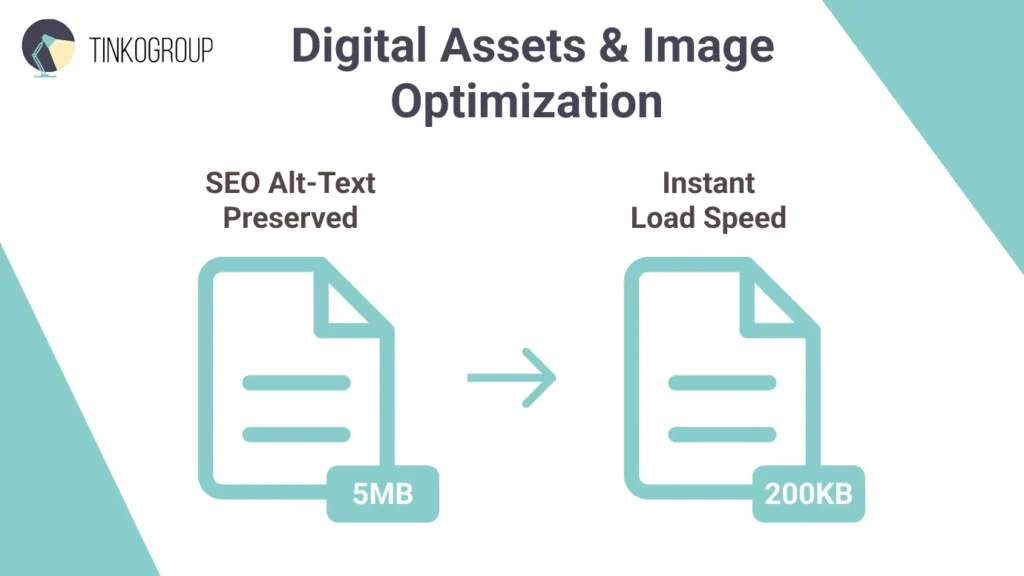
Second, many older platforms use large, unoptimized images. Migration is the perfect time to improve it. Smaller, optimized images load faster, work well on mobile, and can improve both conversions and search rankings.
Third, image alt text also matters. Alt text helps screen readers, improves accessibility, and gives search engines context. If this information is lost during migration, you lose SEO value and risk accessibility problems.
Also, don’t forget about other assets – logos, banners, homepage images, blog images, PDFs, and downloads. These files need to be moved into Shopify and reconnected properly.
The Best Way to Move Images
The safest approach is an automated migration using Shopify’s API or Matrixify. A good process looks like this:
• Download images from your current platform or CDN.
• Optionally run them through an optimization service (like ImageOptim or TinyPNG APIs) to reduce file sizes without quality loss.
• Upload to Shopify and attach to the correct product, preserving the original alt text.
Correctly done image bulk product import keeps your store fast, searchable, and visually consistent after launch.
Post-Migration Quality Assurance (QA)
It’s tempting to hit the launch button as soon as possible. But don’t rush until you check everything properly. A solid Quality Assurance (QA) phase is a must. Even the smallest data glitches can turn into huge problems and even losses overnight. So, you need a structured plan to make sure the new store actually works better than the old one.
Carry Out Random Sampling
You can’t always trust a computer to tell you if a page looks right. You must act and do some manual spot-checking. Pick about 100 to 500 products at random across different collections and analyze them. What to look for:
- The basics. Check if the titles and descriptions look clean. There should be no weird HTML symbols floating around.
- The variations. Check if the image remains the same if you click different buttons. Check if prices are correct for every variant.
- The hidden data. Check your metafields – they all should contain correct information.
Conduct Automated Validation of the Store
Once the products look good, you need to make sure everything else works well. This is where you move from looking at pages to testing the actual flow of a sale.
- Shipping. Place test orders from different locations and double-check that all fees are calculated correctly. If these numbers are wrong, customers may abandon their carts or you could lose money on orders.
- Search and filters. Act like a customer and try to “break” the site. Use the search bar, click through filters, and sort products by things like Price: High to Low. If results are slow, confusing, or incorrect, shoppers will get frustrated and leave.
- Inventory and stock. Compare Shopify’s inventory numbers with your warehouse or ERP system. Make sure products shown as “in stock” actually exist. Selling items you don’t have leads to cancellations, delays, and unhappy customers.
Have a Monitoring Plan
The first 48 hours after the Shopify catalog migration are the most critical. You need to keep a close eye on everything.
Double-check that your Google Analytics works. It will let you see what people are doing. Watch your error logs for 404s. If people are hitting dead ends, you might have missed a redirect.
Always have an emergency exit. Know exactly how to point your domain back to your old site if something goes sideways. It’s a question of whether you will actually need it, but you’ll sleep much better knowing it’s there.
Conclusion
It’s a powerful step forward for your online store to migrate products to Shopify. But you must carefully handle your data. A successful Shopify catalog migration is not a simple design upgrade. This is a store transformation that depends on data integrity.
In reality, about 80% of a good migration happens before anything is imported. You will have to seriously audit your catalog, clean messy data, and standardize attributes. These steps prevent broken products, missing images, SEO losses, and inventory issues later. The remaining 20% is the actual import, redirects, and final testing, and this part will work smoothly if the preparation was good. Teams rush this preparation phase, and problems don’t always show up immediately. But they appear after launch in the form of lost sales, confused customers, and costly fixes.
Brands that take data integrity seriously see very different results. They launch faster and experience fewer issues after migration. If you’re planning a Shopify migration with a large or complex catalog, consider partnering with experts for a successful outcome. Tinkogroup specializes in enterprise-level e-commerce data entry and migration work. We perform audits, bulk data cleansing, metafield setup, detailed migration mapping, and accurate product imports at scale.
Your data is one of your most valuable assets. And your Shopify catalog migration doesn’t have to be risky. On the contrary, let it become a real growth opportunity. Reach out to Tinkogroup to protect your data and make your transition to Shopify smooth and successful.
Will I lose my Google rankings after moving to Shopify?
Not if the migration is handled correctly. The key is implementing a 301 redirect strategy that maps every old URL to its new Shopify equivalent. By preserving your metadata and ensuring no broken links (404 errors), you can maintain and often even improve your SEO performance post-migration.
How long does a Shopify catalog migration take?
The timeline depends on the catalog size and data quality. A simple CSV import for a few hundred products can take a day, while an enterprise-level migration with 50,000+ SKUs, custom metafields, and image optimization typically takes 2 to 4 weeks, including the audit and QA phases.
Can I migrate my store while it is still live and taking orders?
Yes. Professional migration involves exporting data from your current platform while it’s running. We then perform the import and configuration on a development Shopify store. A final “delta sync” is done just before launch to capture the most recent orders and customer data, ensuring a seamless transition with zero downtime.