

You use adaptive UI every day. From the moment you wake up, it quietly works in the background to make life easier. Your phone dims its screen to match morning light. During the commute, it shifts to one-handed mode for easier navigation. At work, your laptop highlights important messages and documents automatically. Later, your smart TV suggests shows based on everything you’ve watched that week. Each of these devices is powered by adaptive user interfaces (AUIs).
An adaptive user interface is a system designed to adjust layout, features, and functionality based on your context, device, and habits. Every day, people switch between smartphones, laptops, tablets, and wearables over 20 times a day, and this adaptability is not optional anymore.
Traditional responsive design only resized content to fit different screens. But today’s users want more than that. They expect their tools to understand when, where, and how they’re being used and adjust automatically.
Let’s learn more about how an adaptive user interface is changing modern software through four key approaches:
- Situational UI – responds to environmental factors.
- Contextual UI – adapts based on user actions.
- Liquid UI – keeps a fluid experience across devices.
- Dynamic applications – personalize interactions in real time with the help of AI.
Together, these technologies create advanced digital experiences. In other words, these are interfaces that don’t just react, but truly understand and support the way you live and work.
What Is an Adaptive User Interface?
An adaptive user interface (AUI) takes the idea of responsive design to the next level. According to Wikipedia, an adaptive user interface is “a user interface (UI) which adapts, that is, changes its layout and elements to the needs of the user or context and is similarly alterable by each user”.
Responsive design adjusts layouts to different screen sizes, and adaptive interfaces go further as they use intelligence to respond to real situations. They can change how an app looks or behaves based on device type, user activity, or environment. In short, adaptive interfaces can adapt to context and create a more personalized and efficient user experience. Their core principles are:
- Device and environment awareness. The interface recognized a device type, internet speed, lighting, sound, and motion to adjust display and controls.
- Learning from user behavior. It studies habits, preferences, and experience level and adapts over time based on how you use it.
- Task relevance. The system highlights the tools or features most useful for what you’re doing at the moment.
- Platform fit. It respects the design style and rules of each device or operating system, and keeps interactions smooth.
How AUI Differs from Responsive Design
Both approaches aim to improve how apps and websites look across devices; they do it in very different ways:
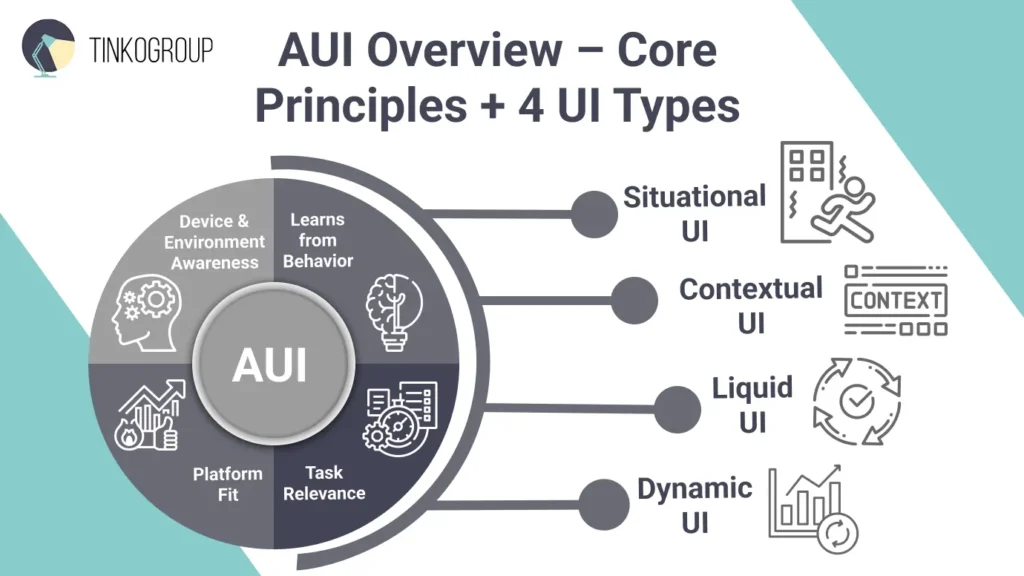
- Responsive design uses only one layout and makes it highly adjustable thanks to flexible grids, images, and CSS media queries. Such a layout automatically adjusts to any screen size. The text, images, and buttons don’t change; they just move around or resize to fit neatly on whatever screen you’re using.
- Adaptive design works a bit differently. It uses several fixed versions made for specific screen sizes. When you open a site or app, it detects your device and loads the layout that fits best. Besides that, adaptive design can also change what you see on the screen. For example, it will show simpler options on a phone or adjust features based on what you’re doing or where you are.
For example, a responsive travel site will simply reshape the layout to fit your screen, and you will see the same content on a phone or laptop, just rearranged. An adaptive site will show you bigger buttons and fewer options on the phone, and the desktop version will have detailed maps and filters. So, responsive design resizes, and adaptive design customizes.
Why Adaptive Design Wins
Adaptive design looks good on any screen, but its main value is that it responds to how people actually use technology. Here’s why it matters:
1. Faster task completion. Adaptive interfaces show only what’s relevant at the right time, and you avoid extra clicks and confusion. Studies suggest users complete tasks up to 30% faster with adaptive layouts.
2. Better accessibility. Adaptive design makes apps easier to use for everyone – it quickly adjusts to device type, lighting, or even motion. It works equally well for people with different abilities or technical skills.
3. Reduced cognitive load. Users don’t have to think about where to find things. The interface automatically simplifies itself based on the task, helping people stay focused.
4. Higher engagement and conversions. Personalized layouts and adaptive checkout flows can seriously improve completion rates.
5. Lower training and support costs. Adaptive systems gradually reveal advanced features, letting new users learn faster and reducing support calls by as much as 40% in enterprise apps.
Situational UI
A situational UI is a smart interface that changes automatically depending on where you are or what’s happening around you. Situational UIs use real-time data from GPS, ambient light sensors, or accelerometers to trigger modifications. Let’s have a closer look at how it happens in real life.
How environmental adaptation works
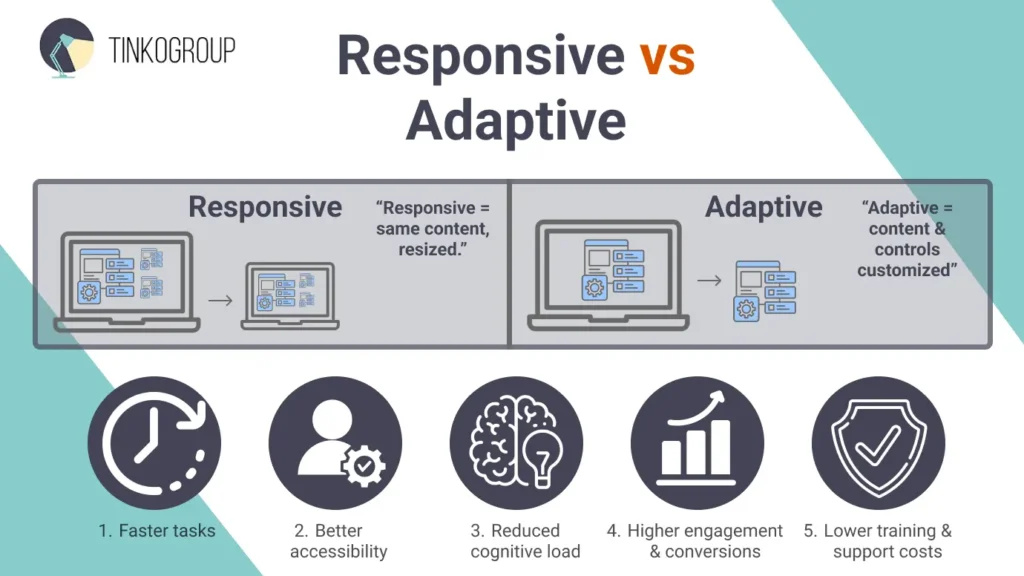
A great example of situational UI is night mode – you can find this feature in almost every smartphone today. When the light around you gets dim, your phone automatically switches to darker colors to make the screen easier on your eyes and help save battery life. Apple’s Dark Mode in iOS 13, can even turn on by itself at sunset or follow a custom schedule for night reading comfort.
Another example is driving mode in apps like Google Maps. When the app sees that you’re moving in a car, it automatically changes the display to a simpler, high-contrast view with large buttons and voice directions. This setup reduces distractions and makes navigation safer while you’re on the road.
Wearables also use situational UI. Apple Watch automatically adjusts its screen brightness and vibration strength depending on what you’re doing. If you’re in a meeting (it reads it through your calendar), it stays dim and quiet. But if you’re working out, it gets brighter and more responsive.
During exercise, the watch shows key stats – your heart rate, distance, and calories burned. Fitbit or Google Fit fitness trackers go a step further. They use built-in sensors and GPS to detect when you’re running, cycling, or swimming and switch into the right tracking mode automatically. These smart features make the devices more helpful and keep people more engaged.
Situational UI is also transforming how we drive. Modern cars now use AR heads-up displays (HUDs) that project navigation directions, speed limits, and show safety alerts directly onto the windshield. These systems read and show real-world driving conditions. For example, the interface will show pedestrians in foggy weather or at high speeds or lane markers and obstacles right in the driver’s line of sight. Drivers can stay focused on the road instead of looking down at a dashboard screen.
Google Nest and Amazon Alexa smart home systems use situational UI in their work, too. For example, when the system senses that you’ve left home (using your phone’s location), the app automatically changes what you see. It will show security camera feeds or turn on energy-saving settings. When you return, it switches back to focus on things like lighting and temperature controls.
Uber Makes Apps Safer with Situational UI
Uber uses an adaptive user interface to make apps safer and easier to use. The app adjusts what you see on screen based on what’s happening in real life. If your car stops suddenly or takes an unusual route, RideCheck will immediately ask if you’re okay and give quick access to help options. At night, Uber highlights safety tools like PIN verification and sharing trip status, so riders can act fast if needed.
The interface also changes depending on where you are and shows clearer pickup points in busy areas, or simplifies buttons when the car is moving. These smart design choices make people feel safer and more in control, which helps Uber increase trust and customer retention by 12%.
Contextual UI
A contextual UI is a type of interface that changes based on what you’re doing at the moment. It doesn’t show every button or menu all the time but brings up the tools and options that are useful for your current task. For example, when you highlight text in a document, you may see an editing bar with options like bold, copy, or comment. It will disappear once you stop editing.
Contextual UIs often use smart detection or predictive systems to guess what you will need next. They save time, reduce confusion, and make the whole experience feel smoother and more natural.
Situational UI reacts to what’s happening around you, and contextual UI focuses on what you’re doing. It adapts to your current task – it can show editing tools only when you’re typing or highlight sharing options when you select a file.
How Contextual UI Works
In everyday apps, contextual UI analyzes what you’re doing and adjusts the interface to match your activity.
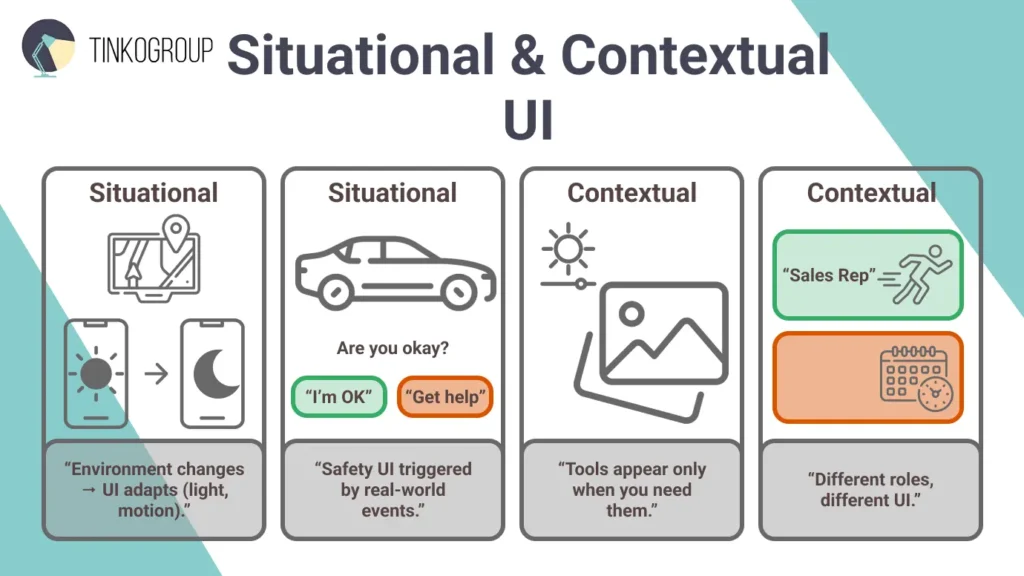
You’ve probably seen this in Google Docs. When you highlight some text, a small menu appears with options like Add comment, Suggest edits, or Translate. These tools show up only when they’re useful, so you don’t have to search through menus. If you click on an image instead, the options instantly change to things like Crop or Add alt text. The interface keeps only the tools you need in front of you and hides everything else to reduce clutter.
Microsoft Word works in a similar way. When you insert a picture, a Picture Tools tab instantly appears with editing options like brightness, borders, or layout. Once you click away, that tab disappears, keeping the interface clean and focused. It makes Word easier to use since it only shows the tools that matter for your current task.
Design tools like Figma automatically change what you see in the side panel depending on what you click. For example, if you select a shape, the panel shows tools for color, size, and borders.
In Salesforce, the interface works the same way, but for business tasks. A sales rep might see a dashboard with leads and quick buttons to contact clients, while a manager sees charts and filters to track team performance. The system updates the layout based on who’s using it and what data they’re looking at.
How Contextual UIs Improve Workflows
Contextual UI offers the right tools at the right time. You don’t have to search through menus – you instantly see options for what you’re doing. Adaptive designs can improve task speed, since users don’t waste time looking for features. In workplaces, built-in tips and contextual help can make new employees learn tools twice as fast and cut training time.
One research found that role-based, adaptive dashboards improved decision speed and accuracy by 40%, and customized dashboards increased user satisfaction by 45%. Another industry report on adaptive design in UX indicated that experiences tailored to user context and behavior can increase conversion rates by up to 85%.
Liquid UI
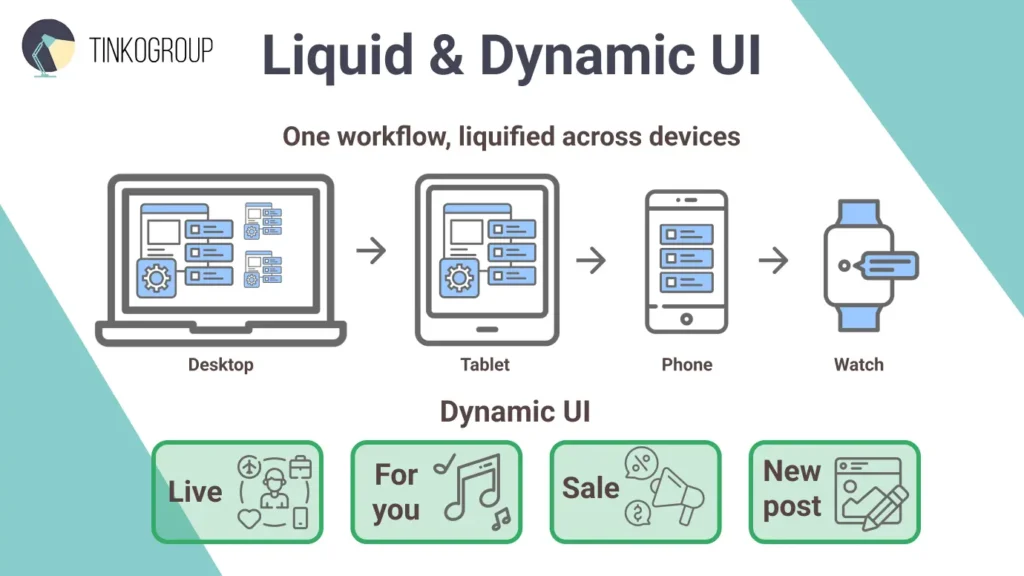
Liquid UI is a way of designing apps so they work smoothly on any device. The interface flows to fit each screen and device and is still easy to use. In simple words, it changes shape like water does when you fill the container, but it’s still the same water. Liquid UI makes sure the app feels familiar and works well, no matter how or where you use it. Talking about responsive vs liquid UI, it’s important to understand that responsive design mainly resizes content to fit different screens. And Liquid UI adapts workflows, interactions, and features to each device, be it a desktop, tablet, or mobile device.
A responsive design may shrink a long form to fit a smaller screen, and a Liquid UI redesigns the experience entirely. It may merge multiple screens into one, simplify menus, or swap mouse clicks for swipes or voice commands on mobile. In short, responsive design changes how things look. Liquid UI changes how they work.
How SAP Liquid UI works
SAP is a type of enterprise software that many large companies use to manage finance, logistics, and inventory. It’s powerful but often complex, especially when employees need to access it on different devices.
Liquid UI helps simplify that experience. Think of it as a smart layer that reshapes SAP’s interface so it fits any screen while keeping all the important functions. This is how it simplifies a purchase order approval workflow:
On desktop, the interface presents comprehensive order details, vendor history, budget impact analyses, and comparison tools in a rich, multi-panel layout designed for thorough review
On a tablet, the same workflow shrinks to a single-document view with gestural navigation between related information panels
On a smartphone, it transforms into a simplified approve/reject interface with essential details and a review later option for complex orders
On a smartwatch, it becomes a notification with primary data points and voice-activated approval for pre-authorized amounts
These aren’t separate applications but liquid forms of the same interface logic, just adapted to different platforms. The user’s mental model of the workflow remains consistent, but the interface “liquifies” to match the capabilities of different devices.

Reliable Data Services Delivered By Experts
We help you scale faster by doing the data work right - the first time

Liquid UI from a business perspective
Liquid UI saves time and money by letting companies use one interface for all devices.
Diageo (a global beverage company) reported $90,000 saved per employee per year after using Liquid UI to streamline their SAP plant‑maintenance workflow.
KITZ Corporation managed to cut a typical SAP transaction time (in purchase/order systems) from 5‑7 minutes down to about 3 minutes, through Liquid UI redesign.
Dynamic Applications
Dynamic applications are apps that update themselves in real time based on what’s happening around them or what the user does. A user doesn’t wait for a page reload – the interface changes instantly, showing the most relevant information or options. These apps use technologies like WebSockets, AJAX, or server-sent events to keep data flowing smoothly. A dynamic application can respond to things like stock prices, user activity, or sensor readings automatically. An adaptive user interface enables dynamic apps to rearrange layouts, show important content, or suggest actions as situations change. They feel alive and make work and interactions faster, smoother, and more engaging.
Dynamic Applications in Real Life
Live dashboards are dynamic apps. Take, for example, Tableau. It allows teams to explore sales, finance, or operational data and get visual updates immediately when new data flows in. Users can drill down into metrics, spot anomalies, and get suggested views, making decision-making faster and more accurate.
Spotify personalize content in real time – it builds playlists based on listening habits, time of day, and skipped tracks. Amazon dynamically adjust product recommendations for every potential customer.
Finance apps such as Robinhood show live stock updates and alerts, and social media platforms like TikTok adapt feeds instantly based on interactions. Dynamic apps make software feel alive in any industry and greatly boost user engagement and satisfaction.
The Business Impact of Dynamic Applications
Dynamic applications are not just more appealing; they bring measurable results for any business:
Higher engagement. Personalized, dynamic interfaces can grow revenue by 5–15% and bring new customers at a 10–20% lower cost, according to McKinsey.
Better decision-making. Live dashboards show anomalies and patterns automatically, and the teams can spot insights without manually digging through data.
Competitive edge. Companies using dynamic personalization often see 10–30% improvements in marketing campaigns.
How Data Annotation Powers an Adaptive User Interface
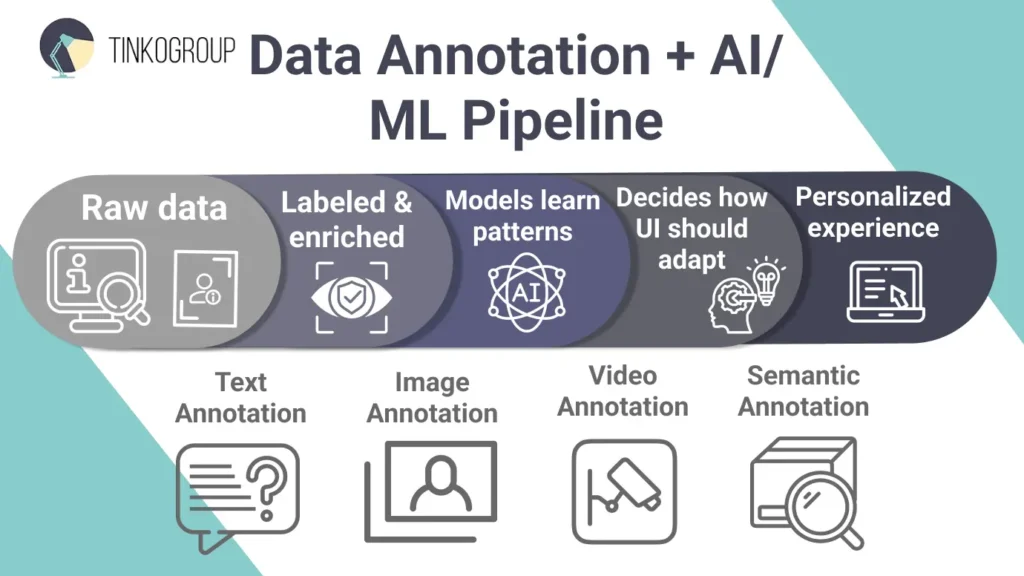
Adaptive interfaces learn from people. They use machine learning (ML) to understand how users tap, scroll, speak, or move. This knowledge allows the interface to adjust automatically and simplify all the tasks. But before these systems can work, they need examples to learn from. This is data annotation for adaptive interfaces.
Data annotation is a process of adding labels or notes to raw information – text, images, videos, or sensor data. These labels teach machine learning adaptive UI to recognize patterns. Without this step, adaptive interfaces would make more mistakes or react too slowly.
For example, text annotation enables Siri or Alexa assistants to understand what users want when they speak. Image and video annotations allow apps to spot gestures, faces, or motion, for example, in fitness trackers or AR filters. Semantic annotation adds meaning to digital content; for example, Microsoft Word or online stores can show the most relevant options for each task.
Good annotation is what allows situational, contextual, and dynamic UIs to work smoothly. It allows apps to respond to real situations, adapt layouts, and make smart suggestions in real time.
Role of AI & ML in Adaptive Interfaces
Adaptive user interfaces are more than what you see on the screen. They use artificial intelligence (AI) and machine learning (ML) to understand what users need before they even ask. These systems watch how people interact – what they click, how long they stay on a page, or what tasks they repeat – and use that information to adjust the layout and make work easier. For example, if the system notices that several people are editing a document at once, it can automatically show collaboration tools without anyone needing to search for them.
Annotated training data is critical here as well, as raw inputs like device metadata or environmental signals must be labels to teach models contextual discernment. AI-based interfaces use this labeled data to tell different situations apart. For example, if you’re using a phone, the system may display a smaller layout with touch gestures. If you’re on a computer, it might open wider screens with more tools for work.
Advanced adaptive interfaces use AI to make work easier and turn business software into smart prediction systems, which can reduce mental effort by up to 40%. AI makes apps more inclusive, adjusting to different needs instead of staying fixed. Machine learning for UX improves every day, and adaptive interfaces will also get smarter, learning from each interaction.
Types of Data Annotation for Adaptive UI
Experts use several key annotation methods when training data for adaptive interfaces. Each type helps systems see, hear, or understand user actions in context and allows them to adapt seamlessly across devices and situations.
Text Annotation
Text annotation lets systems understand what people say or type. Annotators label words with their intent (like “play music” or “book a flight”), entities (such as names, dates, or locations), or even emotions (happiness, frustration, excitement). These labels teach Siri, Alexa, or Google Assistant to respond naturally to spoken commands. It’s also used in chatbots that support customers and give automatic answers or connect users with a person. With better text annotation, adaptive interfaces can predict what users mean and reply faster and more accurately.
Image Annotation
Image annotation teaches systems to recognize what they see – faces, objects, gestures, or backgrounds. Annotators mark parts of images and give them labels such as “portrait,” “food,” or “document.” Phones use this to adjust camera settings automatically, and cars use it to detect whether a driver is alert or distracted. In adaptive UIs, image annotation allows the interface to “see” what’s happening around the user, helping it respond to visual cues or environmental changes.
Video Annotation
Video annotation labels movement and changes over time. Annotators mark actions or objects across video frames so systems can recognize patterns. Such data is a foundation for fitness apps. YouTube uses it to sort videos and improve recommendations. Security systems use it to spot unusual behavior. Video annotation also enables AR or VR apps to respond when a user moves or makes a gesture.
Semantic Annotation
Semantic annotation lets systems understand the meaning and relationships between pieces of information. In Microsoft Word, it powers contextual menus that show only the tools you need. Online stores use it to highlight key product details based on category, for example, showing “size” for shoes or “battery life” for gadgets. Accessibility tools also depend on semantic annotation to adjust interfaces for users with different needs.
How They Work Together
Situational, contextual, liquid, and dynamic UIs focus on different parts of adaptability. But in most modern apps, they work together to create a user-centered adaptive interface.
Each type adds its own strength. Situational UI reacts to the user’s surroundings, like location or light. Contextual UI focuses on what the user is doing. Liquid UI is responsible for a consistent experience across devices. And dynamic UI personalizes content in real time. When these layers work together, data flows between them with no boundaries, and machine learning models use signals from one area to improve another. This makes the interface feel almost predictive, responding before the user even asks.
Take Microsoft 365, for example. It combines all four types: situational cues like “focus mode” adjust based on time of day; contextual toolbars show only the tools you need; liquid layouts keep documents usable across desktop, tablet, and phone; and dynamic updates refresh in real time when teammates edit together. Together, these features can boost your productivity by as much as 25%.
Here’s a simple breakdown of how they differ and connect:
| Aspect | Situational UI | Contextual UI | Liquid UI | Dynamic UI |
| Focus | Reacts to environment (light, location) | Responds to user actions and app state | Keeps layout consistent across devices | Updates in real time based on data |
| Key Triggers | Sensors, time, GPS | User selections, task type | Screen size, device features | Live data, user behavior |
| Examples | Night mode in iOS, driving mode in Google Maps | Context menus in Google Docs, Word toolbars | SAP mobile layouts, Oracle dashboards | Tableau live charts, Spotify playlists |
| Benefits | Comfort and safety | Faster workflows | Easy cross-device use | Personalized experiences |
| Business Value | 15–20% higher retention | 10–15% more productivity | 30–40% lower dev costs | 20–30% more engagement |
In the real world, these types are always blended into one adaptive experience. Look at how it works in Waze – situational data detects traffic, contextual tools suggest routes based on habits, liquid design keeps maps clear across devices, and dynamic updates stream live alerts.
It’s an adaptive user interface (AUI), a system that continuously learns, predicts, and improves. Studies show that companies using this integrated approach see up to 40% higher user satisfaction. In short, when all four types work as one, the interface stops feeling pure software and starts feeling like intuition.
Conclusion
Adaptive user interfaces (AUIs) are changing how people interact with technology. Situational, contextual, liquid, and dynamic elements make apps smarter, faster, and more personal. The result is simpler workflows, fewer errors, and more natural experiences across all devices.
Real-world examples already show the impact of an adaptive user interface. Spotify adjusts music suggestions based on mood and habits, and Amazon makes shopping highly individual for every customer. Tableau and Salesforce let teams work up to 30% faster through real-time, adaptive dashboards. Even enterprise platforms like SAP Liquid UI cut costs and improve safety. Users spend 20–30% more time on adaptive apps, and companies see retention rise by 15–25%.
These gains are possible thanks to AI, machine learning, and accurate data annotation. These are the foundations that allow AUIs to learn from user behavior and environment. Together, they turn static screens into intelligent, predictive systems.
For businesses, adaptability is a modern must-have. User expectations grow and devices multiply, and AUIs offer clear advantages: up to 40% lower development costs through unified design, reduced churn, and faster innovation. They also promote inclusivity for people with different needs.
How to get started? First, audit your existing interfaces and look for places where you can add AI-driven personalization or sensor-based triggers. If you struggle, Tinkogroup experts will help. We specialize in labeling data such as text, images, and videos. We train AI systems to understand context better and make apps adapt more accurately to users’ needs.
An adaptive user interface isn’t a design trend. It’s the future of user experience. So, it’s time to start building applications that feel human, intuitive, and ready for the modern digital world.
What is the difference between Responsive and Adaptive Design?
Responsive design simply resizes layout to fit the screen, while Adaptive design changes content, features, and workflows based on the user’s device and context.
How does Adaptive UI improve business performance?
It reduces cognitive load and helps users find tools faster. Studies show this leads to up to 30% faster task completion and higher conversion rates.
Why is data annotation needed for Adaptive Interfaces?
Annotation teaches AI models to recognize user intent and context (like voice commands or gestures). Without labeled data, the interface cannot predict needs or adapt accurately.